Put the games on your home screen
reidaugust 29, 2026
You can add morningcoffee.games to your phone's home screen, just like an app. It'll get its own icon and open full screen, with no address bar in the way.
It takes less than a minute! Here's how to do it on iOS and Android.
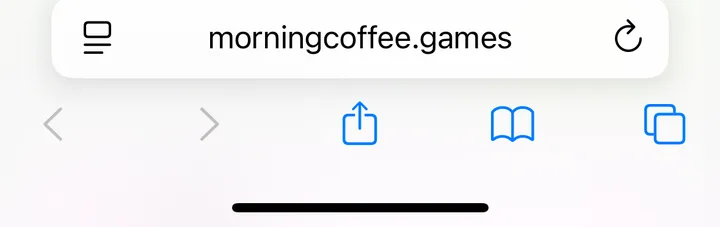
Open the site in Safari and tap the share button in the bar along the bottom. It's the square with an arrow coming out of the top.
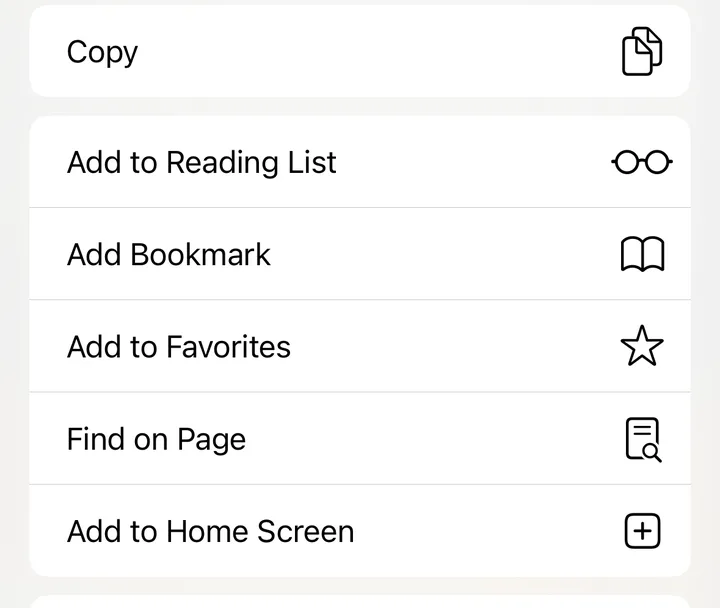
Scroll down the list of actions and tap Add to Home Screen.
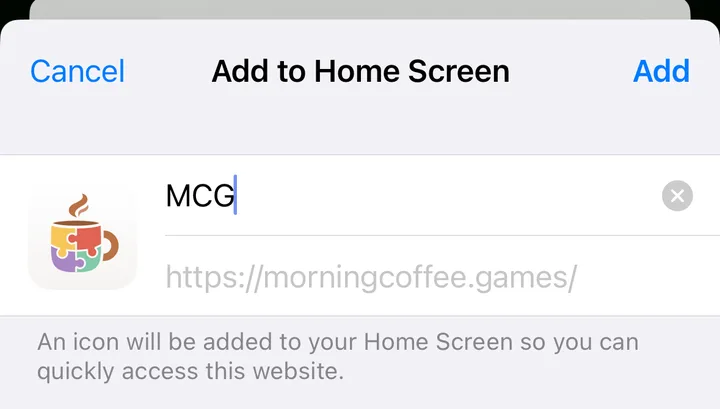
Safari fills in the name MCG. Tap the name to change it, then tap Add in the top right.
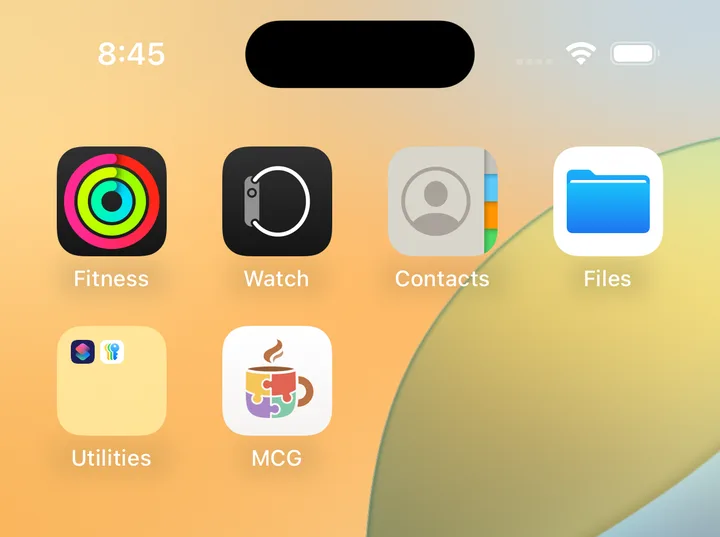
That's it. MCG shows up with the rest of your apps.
Sign in first
iOS treats the home screen version as a separate browser from Safari. The two don't share cookies, so the first time you open the icon you'll be signed out. Sign in there once and it stays that way.
If you play without an account, your progress lives in your browser rather than on the site, so the home screen version won't have it. Make an account and sign in before you add the icon, and your progress comes with you.
Open the site in Chrome and tap the three dots in the top right corner. Tap Add to Home screen, then Install.
That's it. MCG shows up with the rest of your apps.
Chrome moves these buttons around between versions. If it isn't in the main menu, look for Install app, or open the Share submenu, where the newer versions keep it. If your menu looks nothing like any of that, tell me and I'll fix these steps.
What changes
Opening from the icon hides the address bar and the row of browser buttons along the bottom. That's more room for the board on a small screen.
Underneath it's still the website, so you do still need a connection to play. But there's no app store involved and no updates to install. When I ship a change, it's there the next time you open it.